
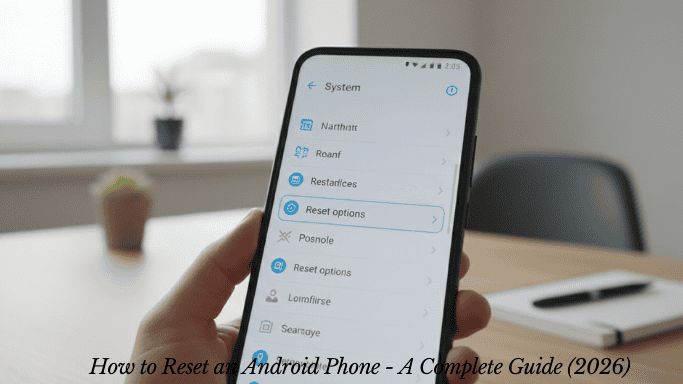
Knowing how to reset an Android phone can save you a lot of frustration. Whether your device freezes, is slow, or you simply want to sell it, a reset is often the quickest solution. This guide explains everything clearly, so you can do it with confidence—even if you’re not a tech expert.
Let’s get started.
Why might you need to reset your Android phone?
Before we get into the steps, it’s helpful to understand when a reset is necessary. There are some common situations where this is the best option.
- Your phone is unusually slow, and basic troubleshooting hasn’t worked.
- You’re experiencing frequent crashes or app errors.
- You’re selling or giving away your device.
- You forgot your PIN or pattern lock.
- Your phone has been infected with a virus or malware.
However, not every problem requires a full factory reset. Sometimes, minor issues can be resolved with a simple restart or clearing the app cache. So, try these options first before resorting to a full reset.
Two Main Types of Resets You Should Know
Not all resets are the same. Android offers different options depending on your needs.
A simple reset: This is simply turning your phone off and then on again. It clears temporary files and refreshes the system without deleting any of your data. Think of it as giving your phone a short break.
A factory reset (full reset): This process erases everything—apps, photos, contacts, and settings. Your phone returns to its factory settings. This is the type most people mean when they say, “I reset my phone.”
Additionally, some phones offer a “Reset Settings” option that restores default system settings without erasing your personal data. This might be a useful compromise.
How to Back Up Your Data Before a Factory Reset
This step is crucial. A factory reset is a permanent process. Once everything is erased, you can only restore it if you have a backup.
Here’s how to quickly back up:
- Open Settings on your Android phone.
- Scroll down and tap Google or Accounts.
- Select Backup and enable the option to Back up to Google Drive.
- Tap Back up now and wait for it to complete.
Also, make sure your photos are saved to Google Photos and your contacts are synced to your Google account. Check WhatsApp, banking apps, or any other apps that store data locally—export or back them up manually.
How to Reset an Android Phone Using Settings
This is the standard method and works on most Android devices, including Samsung, Google Pixel, OnePlus, and others.
- Open the Settings app on your phone.
- Scroll down and tap General Management (on Samsung phones) or System (on other Android phones).
- Tap Reset. Select Factory data reset.
- Scroll down and tap Reset or Reset phone.
- Enter your PIN, password, or pattern if prompted.
- Tap Erase everything or Erase all to confirm.
Your phone will restart and begin the reset process. This process typically takes 5 to 15 minutes. Afterward, you’ll see the initial setup screen, just like when you first bought the device.
How to reset an Android phone without a password (using Recovery Mode):
If you can’t access your phone, Recovery Mode is the best option. This method varies slightly depending on the brand, but the general steps are similar.
How to reset an Android phone without a password (using Recovery Mode):
If you can’t access your phone, Recovery Mode is the best option. This method varies slightly depending on the brand, but the general steps are similar.
For most Android phones:
Power off your phone completely.
Press and hold the Volume Down button and the Power button simultaneously (some phones use the Volume Up button and the Power button together). Continue pressing until the Android logo or recovery menu appears.
Use the volume buttons to navigate and the power button to select.
Select “wipe data/factory reset”.
Confirm the process and wait for it to complete.
Select “reboot system now”.
For example, Samsung devices sometimes use a combination of volume up + Bixby + power buttons. If this method doesn’t work, consult the online recovery mode instructions for your phone model.
What happens after a factory reset?
Once the reset is complete, your phone will restart and the setup wizard will appear. At this point, you will need to:
Choose your language and connect to Wi-Fi
Sign in to your Google account
Restore your backup if you have one
Reinstall your apps and adjust your settings to your preferences
If you are setting up the phone for someone else or selling it, simply skip the setup process. The next person will complete it using their own account.
Helpful tips to keep in mind
Some practical things to know before and after the reset:
Remove your Google account first if you are selling the phone. This prevents the device from being locked by Google’s Factory Reset Protection (FRP) feature.
Charge your phone to at least 70% before starting the reset to avoid any interruptions.
Remove your SIM card and SD card if you don’t want them to be affected during the process.
A factory reset does not usually delete data on an external SD card unless you specifically choose this option.
Common Mistakes to Avoid
Many people rush to reset their devices without thinking it through. However, some seemingly minor mistakes can cause significant problems.
Don’t skip the backup step. It might seem obvious, but it’s the most commonly overlooked step, and the one users regret the most.
Also, don’t confuse “reset settings” with “factory reset.” The former erases your preferences, while the latter erases everything. Read each option carefully before tapping “Confirm.”
Conclusion
Learning how to reset an Android phone is a useful skill every user should possess. Whether you’re trying to resolve a persistent technical issue, erase your device’s data before selling it, or simply start fresh, the process is easy once you know the steps.
Back up your data, follow the appropriate method for your situation, and the process will be complete in less than 20 minutes. If you encounter any problems, you can always use Recovery Mode as a backup option.
Take your time, read each step carefully, and your phone will be reset and ready to use.
1 thought on “How to Reset an Android Phone – A Complete Guide (2026)”