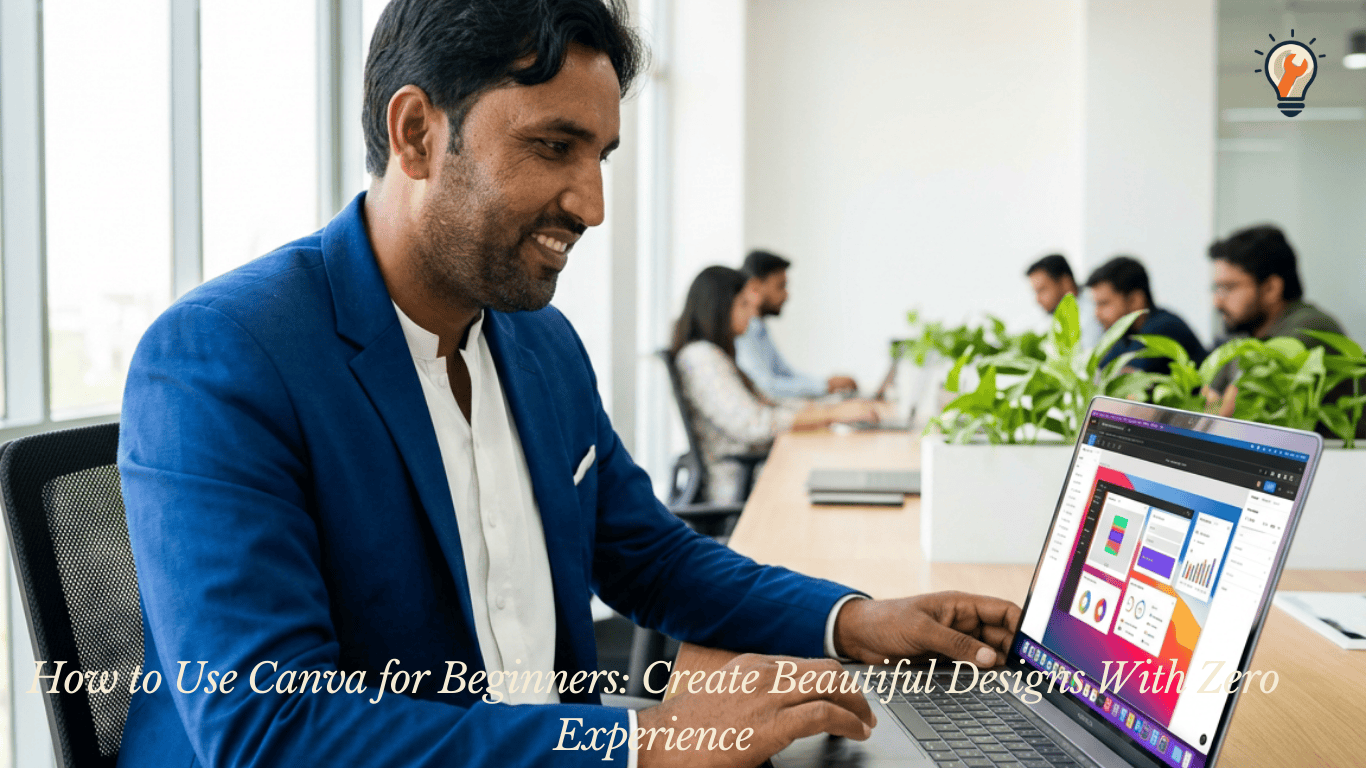
How to Use Canva for Beginners: If you’ve ever wanted to create eye-catching graphics but were intimidated by complex design software, Canva is the perfect solution. Learning Canva for beginners is one of the best investments you can make, whether you’re a student, freelancer, small business owner, or content creator.
Canva is a free, browser-based design tool that empowers anyone to create professional-looking graphics. No design degree or expensive software is required—just your creativity and a few clicks.
What Makes Canva So Popular?
Canva has evolved into one of the world’s most popular design platforms, and for good reason. It offers thousands of ready-made templates for social media posts, presentations, flyers, logos, YouTube video thumbnails, and much more.
Thanks to its drag-and-drop interface, anyone can start designing in minutes. Moreover, most of its core features are completely free, making it a favorite among beginners and professionals alike.
Whether you’re designing on a laptop or your phone, Canva works seamlessly on both.
Setting Up Your Canva Account
Before you start designing, you need to create a free account. Here’s how:
- Go to canva.com in your browser
- Click Sign Up — you can register with your Google account, Facebook, or email
- Choose your purpose — student, teacher, small business, personal use, etc.
- You’ll land on the Canva home dashboard, ready to go
That’s all it takes. Therefore, within two minutes, you have access to thousands of templates and design tools completely free.
Getting to Know the Canva Dashboard
When you first log in, the dashboard might look like a lot. However, it’s actually very well organized once you know where things are.
Here’s a quick breakdown of what you’ll see:
- Search bar at the top — Search for any template by keyword (e.g., “Instagram post,” “resume,” “birthday card”)
- Template categories — Browse by type like Social Media, Presentations, Print, Video, and more
- Recent designs — Quickly access anything you’ve worked on before
- Left sidebar — Access your brand kit, folders, and shared projects
Spend a few minutes just clicking around. In addition, don’t worry about making mistakes — nothing is permanent until you publish or download.
How to Use Canva for Beginners: Creating Your First Design
Let’s walk through making your very first design from scratch.
Step 1: Choose a Template or Custom Size
Click the Create a design button in the top right corner. You can either pick a preset format (like Instagram Post at 1080x1080px) or enter a custom size. For beginners, choosing a preset template is the easiest starting point.
Step 2: Browse and Select a Template
On the left panel, click Templates. You’ll see hundreds of options. Use the search bar to narrow things down. For example, type “business flyer” or “Facebook cover” to find relevant designs.
Click any template to apply it to your canvas. Don’t stress about picking the perfect one — you can change everything.
Step 3: Edit the Text
Click on any text block in the template to edit it. Simply type your own words to replace the placeholder text. You can also change the font, size, color, and alignment using the toolbar that appears at the top of the screen.
Step 4: Change Colors and Background
Click on any element — a shape, background, or icon — to select it. Then use the color picker in the top toolbar to change its color. This is one of the most satisfying parts of designing in Canva.
To change the background color, click on the blank background area and select your preferred color from the palette.
Step 5: Add or Replace Images
Click Photos in the left sidebar to browse Canva’s massive library of free stock images. Simply drag and drop any image onto your canvas. You can also upload your own photos by clicking Uploads and selecting files from your device.
Step 6: Add Elements and Icons
Click on Elements in the left panel to access shapes, lines, icons, illustrations, and stickers. These small details can really bring a design to life. Moreover, you can resize and rotate any element by dragging its corners.
Step 7: Download Your Design
Once you’re happy with your design, click the Share button in the top right corner, then select Download. Choose your file format — JPG for images, PNG for transparent backgrounds, or PDF for print. Click Download and your file saves to your device instantly.
Canva Features Every Beginner Should Know
As you get more comfortable, these features will become your best friends:
- Magic Resize — Instantly resize your design for different platforms (Pro feature, but worth knowing about)
- Background Remover — Remove image backgrounds with one click (Canva Pro)
- Grids and Frames — Drop photos into stylish shaped frames easily
- Brand Kit — Save your brand colors and fonts for consistent designs
- Presentation Mode — Present your slides directly from Canva without downloading
- Canva Mobile App — Design on the go from your smartphone
Even on the free plan, you have access to an enormous range of tools that cover most design needs.
Practical Tips to Design Better From Day One
A few simple habits will immediately improve the quality of your designs:
- Stick to two or three fonts maximum — Too many fonts look messy and unprofessional
- Use consistent colors — Pick two or three colors and use them throughout your design
- Leave white space — Don’t crowd every inch of the canvas; empty space looks clean and modern
- Align everything properly — Use Canva’s alignment guides to keep elements neat
- Start with templates — Even experienced designers use templates as a starting point; there’s no shame in it
In addition, take inspiration from designs you admire. Recreating styles you like is one of the fastest ways to learn.
Free vs. Canva Pro: What’s the Difference?
The free version of Canva is genuinely powerful. However, Canva Pro unlocks additional features for those who need more:
- Access to 100+ million premium photos and elements
- Background remover tool
- Magic Resize for multiple formats at once
- More fonts and premium templates
- Larger cloud storage
For most beginners, the free plan is more than enough to get started and create great work. Therefore, start free and upgrade only when you feel you’ve outgrown the free features.
Final Thoughts
Now that you know how to use Canva for beginners, there’s nothing stopping you from creating beautiful, professional designs right away. The platform is intuitive, beginner-friendly, and packed with tools that make the creative process genuinely enjoyable.
Start with a simple template, experiment with colors and fonts, and don’t be afraid to try new things. The more you design, the faster your skills will grow. Canva truly puts great design within everyone’s reach — and that’s what makes it so special.