
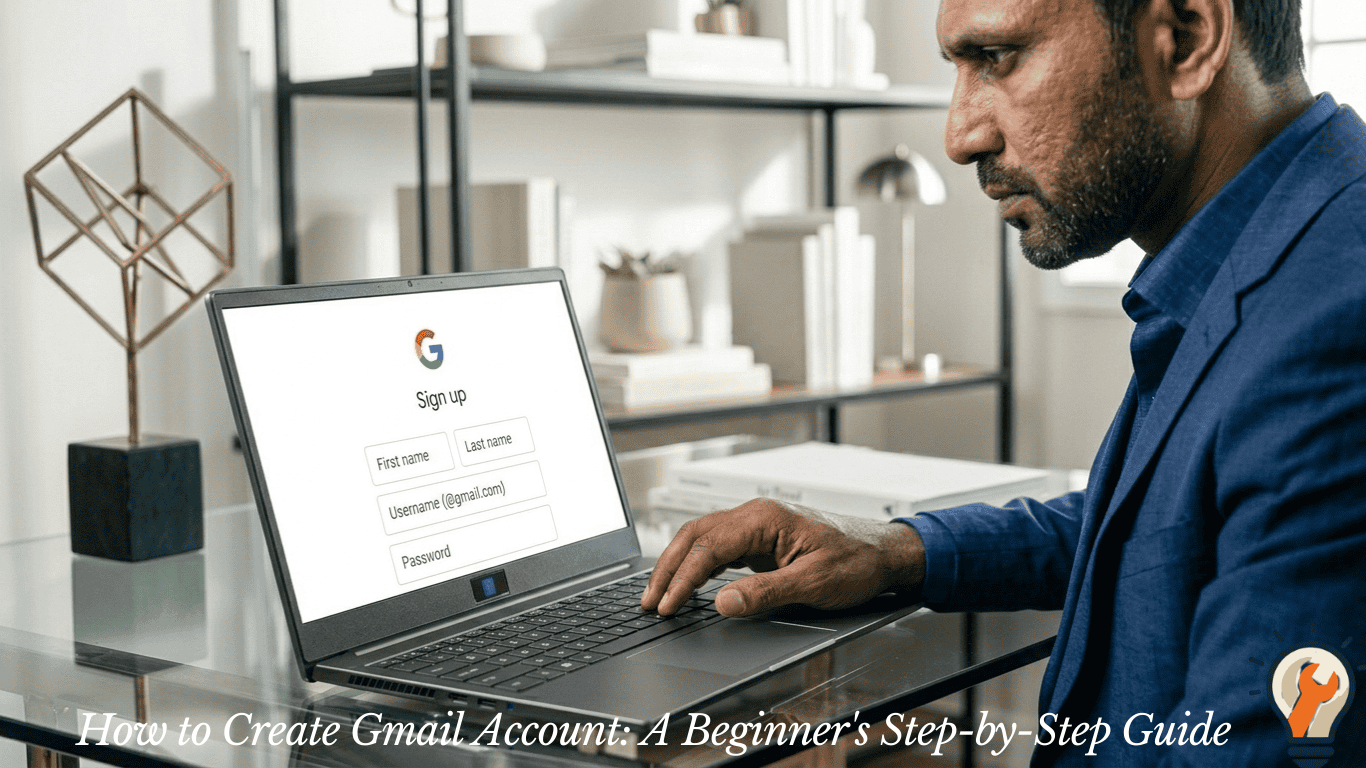
How to create Gmail account for the first time, you’ve come to the right place. Gmail is one of the most popular email services in the world, and for good reason. It’s free, reliable, and works seamlessly across all your devices.
Whether you need it for work, study, or personal use, creating a Gmail account takes no more than five minutes. Let’s walk through everything you need to know.
Why Gmail Is Worth Using
Before we begin, it’s helpful to understand why so many people choose Gmail over other email providers.
Gmail offers 15GB of free storage, a sleek and user-friendly interface, and seamless integration with Google services like Drive, Docs, YouTube, and Google Meet. Furthermore, it runs smoothly on both Android and iOS devices.
For most users, a single Gmail account is sufficient for all their needs, from sending official emails to logging into apps and websites.
What You Need Before You Start
Creating a Gmail account is straightforward, but it helps to have a few things ready:
- A smartphone, tablet, or computer with internet access
- A unique username in mind (your email address)
- A phone number for account verification
- A recovery email (optional but recommended)
That’s really all you need. Therefore, once you have these ready, the whole process moves quickly.
How to Create Gmail Account on a Computer
This is the most common way people set up their account for the first time.
Step 1: Go to the Gmail Website
Open your browser and visit gmail.com. Click on the Create account button. You’ll see two options — one for personal use and one for work or business. Choose the one that fits your needs.
Step 2: Enter Your Basic Information
Fill in your first and last name. Next, choose your Gmail address. This becomes your permanent email, so pick something simple and professional — especially if you plan to use it for work.
If your preferred username is already taken, Google will suggest alternatives. However, you can also try adding numbers or a middle name to find something available.
Step 3: Set a Strong Password
Create a password that’s at least eight characters long. Use a mix of uppercase and lowercase letters, numbers, and symbols. Avoid using your name or birthdate as a password.
Confirm the password by typing it again in the second field.
Step 4: Add Your Phone Number
Google will ask for your phone number to verify your identity. This step also helps you recover your account if you ever forget your password. Enter your number and wait for the verification code via SMS.
Step 5: Add a Recovery Email and Birthday
A recovery email helps you regain access to your account if something goes wrong. In addition, Google asks for your date of birth and gender — this helps with age-appropriate settings and account security.
Step 6: Agree to Google’s Terms
Read through Google’s privacy policy and terms of service. Once you’re ready, click I Agree. Your account is now created.
How to Create Gmail Account on a Mobile Phone
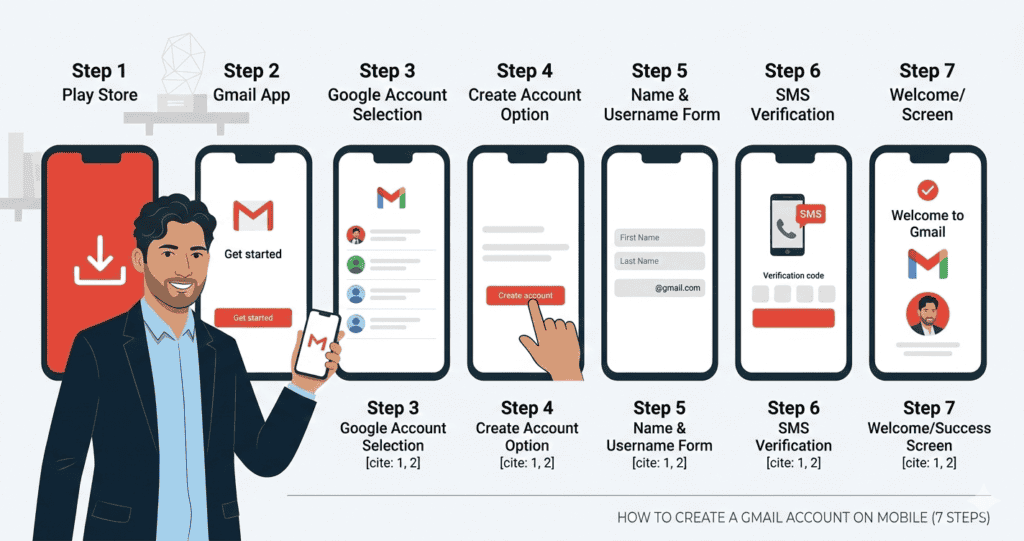
The steps are very similar on a smartphone. Here’s how to do it through the Gmail app.
- Download the Gmail app from the Google Play Store or Apple App Store
- Open the app and tap Add an email address
- Select Google from the list of email providers
- Tap Create account and choose personal or work use
- Enter your name, choose a username, and set your password
- Verify your phone number with the SMS code Google sends
- Complete your profile details and accept the terms
That’s it — your Gmail account is active and ready to use on your phone.
Tips for Choosing a Good Gmail Username
Your Gmail address is permanent once created, so it’s worth taking a moment to choose wisely.
- Keep it short and easy to remember
- Use your real name if possible — especially for professional use
- Avoid nicknames or random numbers that look unprofessional
- For example, guestpoststore0@gmail.com looks much better than swisssites2@gmail.com
- If your name is common, try adding your profession — like ajabbar.writer@gmail.com
A clean, recognizable email address makes a strong first impression.
How to Keep Your Gmail Account Secure
Creating the account is just the first step. Keeping it safe is equally important.
Enable Two-Step Verification
This adds an extra layer of protection. Even if someone knows your password, they still can’t access your account without your phone. Go to your Google Account settings and turn on 2-Step Verification under the Security tab.
Use a Strong and Unique Password
Never reuse a password from another account. Consider using a password manager to store complex passwords safely.
Check Connected Apps Regularly
Over time, you may give third-party apps access to your Gmail. Go to myaccount.google.com > Security > Third-party apps with account access and remove anything you no longer use or recognize.
Moreover, always log out of your Gmail account when using a shared or public computer.
What You Can Do With Your New Gmail Account
Once your account is set up, a whole range of Google services become available to you — all for free.
- Google Drive — Store and share documents, photos, and files
- Google Docs & Sheets — Create and edit documents online
- Google Meet — Host or join video calls
- YouTube — Comment, subscribe, and upload videos
- Google Photos — Back up your phone’s photos automatically
Therefore, your Gmail account is really more than just email — it’s your key to the entire Google ecosystem.
Final Thoughts
Now that you know how to create Gmail account, you’re just a few minutes away from having a powerful, free email address that works everywhere. The process is simple, secure, and beginner-friendly.
Take your time choosing a good username, set a strong password, and enable two-step verification right away. With those basics in place, your Gmail account will serve you well for years to come.
1 thought on “How to Create Gmail Account: A Beginner’s Step-by-Step Guide”
Comments are closed.